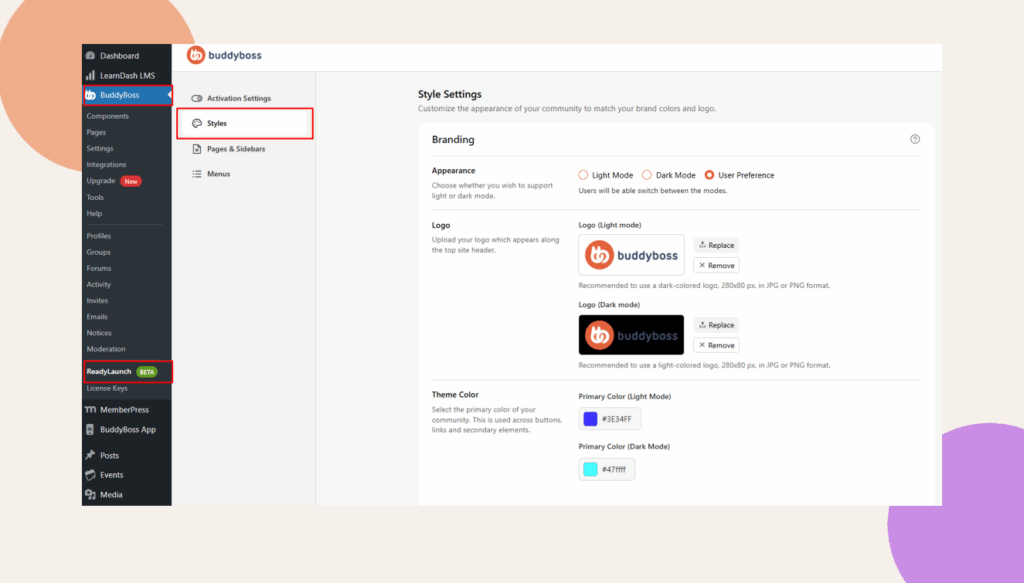
Logos & Theme Color
Discover how to upload your logo and apply a theme color that matches your brand. These small details instantly make your app feel professional and consistent, ensuring your community reflects your brand identity and looks consistent on every page.
Uploading logos:
1. In the ReadyLaunch > Styles > Branding > Logo section, you may upload the following depending on the Appearance style that you have chosen.
- Light mode logo – It is recommended to use a dark-colored logo.
- Dark mode logo – It is recommended to use a light-colored logo.
2. Use Replace to change the file or Remove to delete it.
Note: Make sure to use a 280×80 px logo image. Also, The file formats should either be JPG or PNG.
Picking theme color:
1. Go to the ReadyLaunch > Styles > Branding > Theme Color
2. Select the color of your brand or enter its hex color (e.g., #3E34FF).
Note: This will be applied to buttons, links, and interactive elements.